LabVIEW Installation
1. Before You Begin
- Connect to the University of Illinois VPN (required for installation and activation)
2. Choose Your Platform
3. Install LabVIEW
Windows Installation
- Download and run the LabVIEW Web Installer from WebStore
- Follow the installer prompts using default settings unless noted below
Important Notes:
- You may be prompted to disable Windows Fast Startup → allow this
- NI Package Manager will install automatically
- You may choose whether to enable:
- NI Update Service
- NI Customer Experience Program
⚠️ Important: Activation Step
When prompted to log in to activate:
Do NOT log in or create an NI account
Click Cancel
Activation is handled through WebStore licensing.
Complete Installation
- Allow the installer to finish
- Restart your computer when prompted
macOS Installation
- Download the LabVIEW disk image from WebStore
- Open the
.isofile to mount it - Launch the installer from the mounted image
4. Activate LabVIEW
Choose your license type:
Research License
License LabVIEW
- Open NI License Manager
- Go to Computer Information
👉 You will need this information to request your license file
Request License File
- Log into WebStore.illinois.edu
- Go to Order History
- Open your LabVIEW order
- Locate the license request form below the download links
- Submit the form
You will receive a license file via email
-
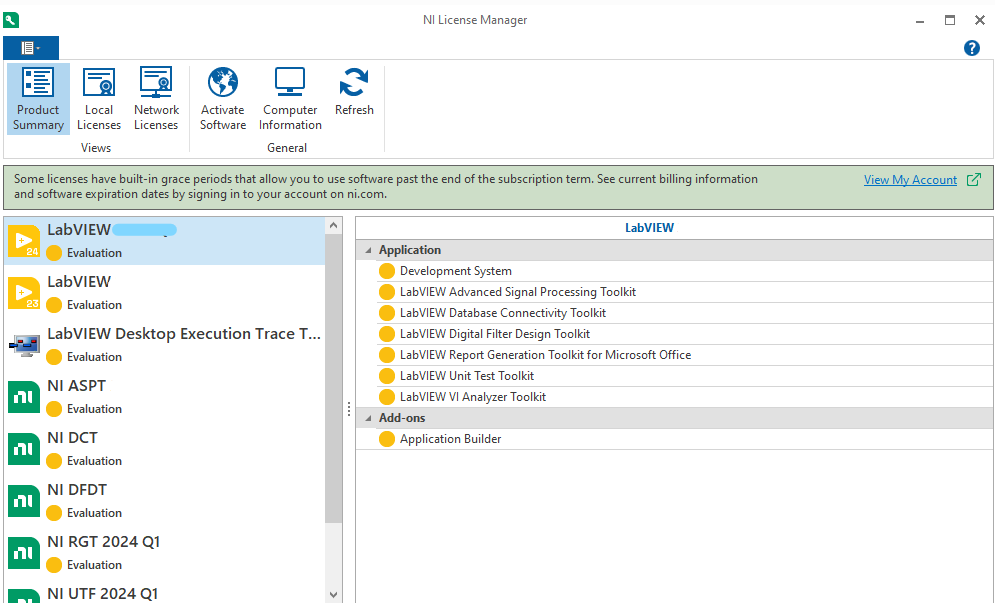
Open NI License Manager
-
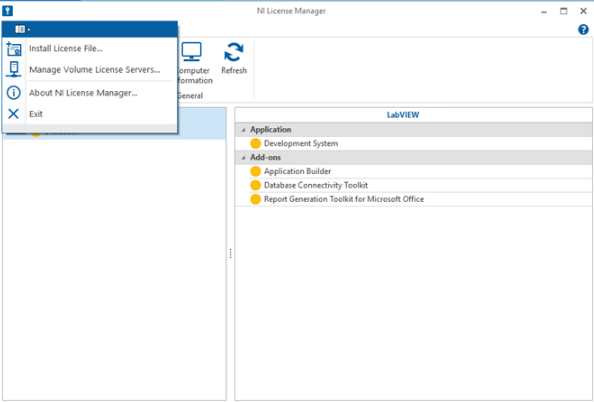
Select Install License File
-
Browse to the license file provided
-
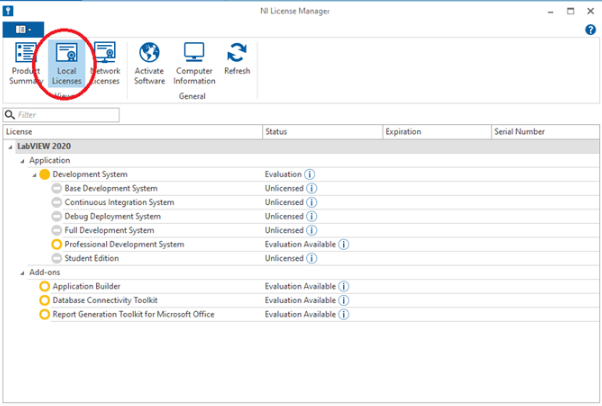
Confirm it appears under Local Licenses
Instructional License
Get the License Server Name
- Log into WebStore.illinois.edu
- Go to Order History
- Open your LabVIEW order
-
Locate the license server name below the download links
-
Open NI License Manager
-
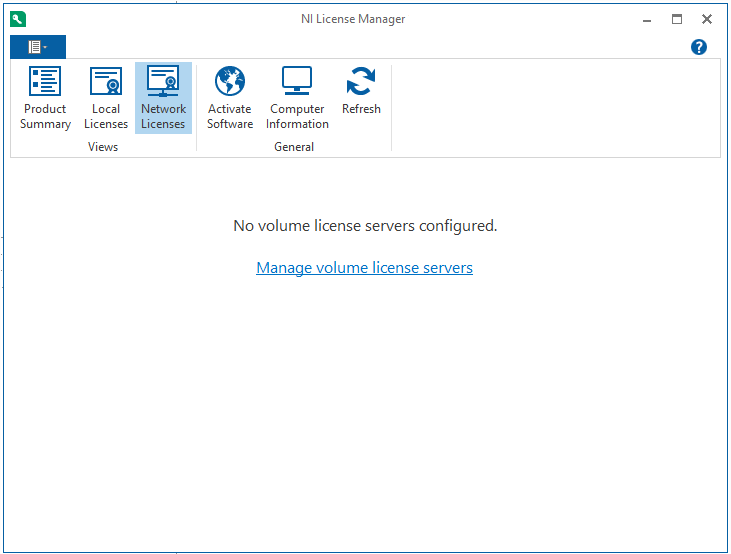
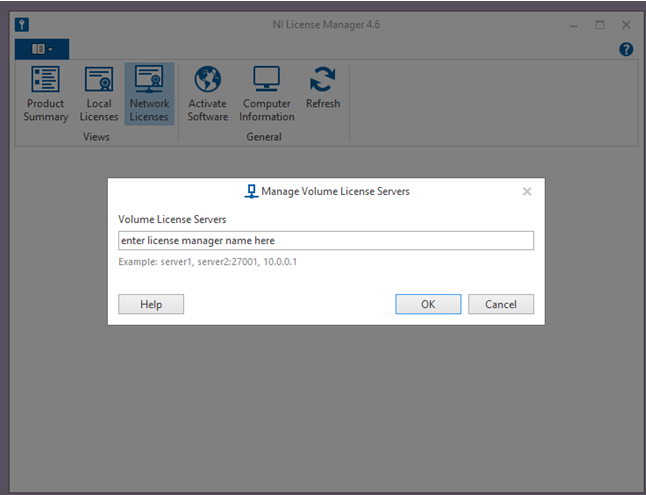
Click Network license and click Manage volume license servers
-
Enter the license server name from your Order History
5. Verify Installation
- Open NI License Manager from the Start Menu
- Open Local Licenses (for Research) or Network Licenses (for Instructional). Your licenses will appear on the right side.