Stata 19 Installation Instructions
Follow the steps below to install and activate Stata.
Quick Checklist
- Installed Stata
- Installed and connected K2 Client (The K2 client is required for registration)
- Submitted registration form
- Entered activation codes
Install Stata
Windows
- Download and run the Stata installer from WebStore
- Follow the installer prompts using default settings
macOS
- Download the Stata installer from WebStore
- Launch the installer and follow default settings
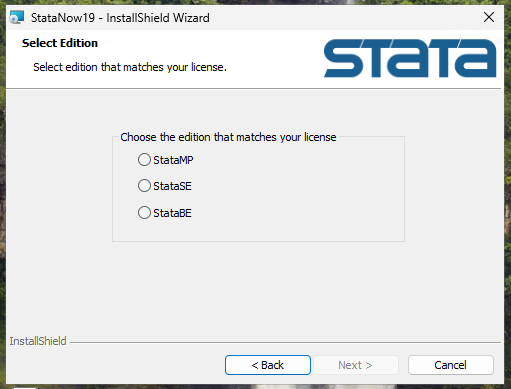
Important: Select the Correct Edition
During installation, select:
- StataSE
Activate Stata
!!! warning "K2 Client Required" Stata licensing requires the Sassafras K2 Key Access Client.
Install and connect the K2 client **before continuing**:
Activation Steps
- Submit a Stata registration request to WebStore
- Wait for your activation information (serial number, activation code, authorization code)
- Open StataNow 19 SE
- Enter the activation information provided
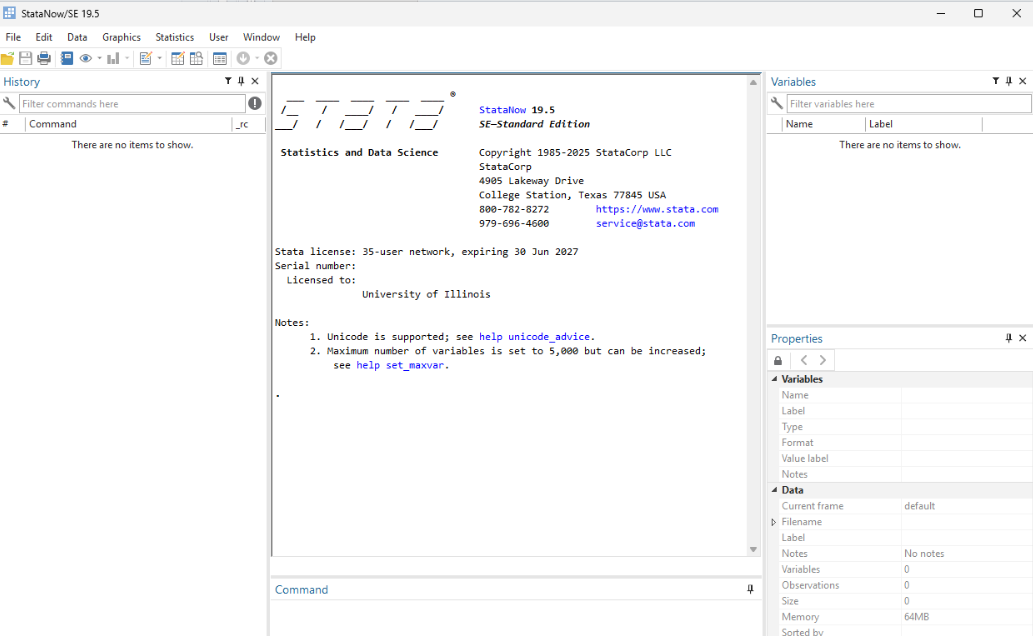
- Update Stata to version 19.5
You're Ready
Once activated and updated, Stata is ready to use.